How to Become an Android Developer in 2026
If you’ve read the Mobile Developer post and the quiz pointed you here - or you already knew Android was your lane before you got anywhere near a quiz - this is the full, deep breakdown. Everything shared across mobile platforms was already covered there. This post is entirely about what’s specific to building for Android.
One thing worth clearing up before anything else: this post is about native Android development - Kotlin, Android Studio, the Android SDK. If Flutter or React Native is what you actually had in mind, that’s cross-platform development, and it gets its own dedicated post on this blog. And if you’re wondering whether Kotlin itself can share code across platforms without leaving native Android UI behind - yes, that’s Kotlin Multiplatform (KMP), a real and maturing option for sharing business logic between Android, iOS, and beyond. Worth knowing the name; it’s not something this roadmap goes deep on, since it’s a genuinely separate path once you’re past the fundamentals below.
Let’s get right into it.
What Is Android Development?
Android development means building apps for devices running Google’s Android operating system - phones, tablets, and increasingly, foldables, wearables, TVs, and cars, all running variations of the same core OS.
Kotlin is the language - Google’s officially recommended choice for Android since 2019, and the language every current Android sample, codelab, and piece of new documentation is written in.
Jetpack Compose and XML Views are the two ways of building the actual interface, and - much like Kotlin and Java - understanding both, and when you’ll encounter each, matters more than picking a side. More on that shortly.
Android Studio is Google’s official IDE - the only place your Kotlin code, your UI, and the Android SDK all come together into a running, installable app.
The Google Play Store is the primary distribution channel, but unlike Apple’s ecosystem, it isn’t the only one. Android allows sideloading and third-party app stores (Samsung’s Galaxy Store, Amazon’s Appstore, and others) - a direct consequence of Android being open-source at its core (AOSP - the Android Open Source Project), versus Apple’s tightly closed model. That openness is the single biggest philosophical difference between the two platforms, and it shapes almost everything else covered in this post.
Why Android Matters in 2026
Here are the numbers, not the vibes: Android holds roughly 70% of the global smartphone market, with iOS taking most of the remaining 29-30%. That gap is a lot wider outside the US - in markets like India, Nigeria, and much of the rest of Africa, Android’s share climbs into the 80s and 90s. If you’re building for a global audience, or specifically for the market this blog is written from, Android isn’t the “other” platform - it’s THE default one.
iOS still wins on a different number: Revenue per user. App Store consumer spending outpaces Google Play by a wide margin, even with far fewer devices in the wild, because iOS users spend meaningfully more per app on average. So the honest framing is: Android wins on reach, iOS wins on monetisation per user - and which one matters more to you depends on what you’re actually trying to build, or who’s trying to hire you.
That reach comes with a genuine cost, and it’s worth naming directly rather than dancing around it: Fragmentation. Apple controls a small, tightly managed set of devices running a version of iOS that gets adopted almost universally within months of release. Android’s device and OS-version spread is enormously wider - Samsung, Xiaomi, Google, OnePlus, and dozens of other manufacturers, each shipping their own skin on top of Android, often years apart on OS version adoption. Add in the growing number of foldables and larger-screen tablets Google has been pushing hard since 2023, and you’re not just testing across screen sizes anymore - you’re testing across genuinely different form factors that can render your layout completely differently if you haven’t designed for it. This doesn’t make Android development harder in every sense - it makes it a different kind of hard than iOS’s, where the trade-off runs the other way.
The verdict: yes, Android development is a strong, well-compensated path in 2026 - arguably the safer long-term bet purely on reach, especially if you’re building for markets outside the US. But the fragmentation trade-off is real, not a footnote, and any roadmap that doesn’t prepare you for it - different screen sizes, different manufacturer quirks, different Android versions in active use simultaneously - is setting you up to be surprised the first time a real user’s device does something your emulator never showed you.
Kotlin vs Java: The Honest Breakdown
Google made Kotlin the official language for Android development back in 2019, and by 2026 that decision has fully played out: every current Google codelab, every new sample project, every piece of fresh documentation is Kotlin. If you’re starting from zero today, there’s no serious argument for starting anywhere else.
Java hasn’t disappeared, though - it’s just moved. A meaningful share of the Android job market is enterprise and fintech companies running Android apps that started life in 2012-2018, back when Java was the only option. Some of those postings still say “Java experience a plus,” and even where new feature work happens in Kotlin, you may still need to read - not necessarily write - Java in an older codebase. Treat it the way this blog’s back-end post treats legacy Java in enterprise systems: not your starting point, but something you’ll recognise and understand if you meet it.
Note: This roadmap teaches Kotlin first, and treats Java as something you’ll meet, not something you’ll start with.
Real Device or Emulator?
You need a Mac somewhere in the pipeline. Android's equivalent question is softer, but still worth answering honestly rather than glossing over.
Android Studio runs on Windows, macOS, and Linux - no special hardware requirement exists at all. You can build, run, and debug Android apps on whatever machine you already own.
The Android Emulator built into Android Studio is fast, supports most modern devices and API levels, and is where you'll do the overwhelming majority of your day-to-day development and testing. For most of the learning stages in this roadmap, it's all you need.
Emulators can't fully replicate real-world performance, battery behaviour, camera and sensor quirks, or how your app actually feels on a mid-range device with less RAM than your development machine - which, given the fragmentation discussed above, describes a large share of Android's real install base. Before you consider anything job-ready or ready to publish, test on at least one real, physical device if you can - even an older, budget one. It will show you things the emulator quietly hides.
The honest recommendation: Learn and build almost entirely on the emulator - it costs nothing and it’s genuinely capable. Borrow or buy a low-cost real device once you’re building something you intend to ship or show in an interview.
Building Your First Screen
Enough theory - let’s build the same simple screen two different ways, so the difference between Compose and XML is something you feel, not just read about.
By the end of this section you’ll have built a small profile card - a name, a bio, and a button that toggles the bio’s visibility - in both Jetpack Compose and the traditional XML + View system. Same result, two completely different ways of getting there.
The XML Way
XML Views is Android’s original UI system: You describe your layout declaratively in an XML file, then write Kotlin code that finds those views by ID and manipulates them imperatively.
res/layout/activity_main.xml:
<?xml version="1.0" encoding="utf-8"?>
<LinearLayout xmlns:android="http://schemas.android.com/apk/res/android"
    android:layout_width="match_parent"
    android:layout_height="match_parent"
    android:orientation="vertical"
    android:gravity="center"
    android:padding="24dp">

    <TextView
        android:id="@+id/nameText"
        android:layout_width="wrap_content"
        android:layout_height="wrap_content"
        android:text="John Doe"
        android:textSize="24sp"
        android:textStyle="bold"
    />

    <TextView
        android:id="@+id/bioText"
        android:layout_width="wrap_content"
        android:layout_height="wrap_content"
        android:layout_marginTop="8dp"
        android:text="Aspiring Android developer, learning Kotlin one line at a time."
    />

    <Button
        android:id="@+id/toggleButton"
        android:layout_width="wrap_content"
        android:layout_height="wrap_content"
        android:layout_marginTop="16dp"
        android:text="Hide Bio"
    />

</LinearLayout>
MainActivity.kt:
class MainActivity : AppCompatActivity() {
    override fun onCreate(savedInstanceState: Bundle?) {
        super.onCreate(savedInstanceState)
        setContentView(R.layout.activity_main)

        val bioText = findViewById<TextView>(R.id.bioText)
        val toggleButton = findViewById<Button>(R.id.toggleButton)

        toggleButton.setOnClickListener {
            if (bioText.visibility == View.VISIBLE) {
                bioText.visibility = View.GONE
                toggleButton.text = "Show Bio"
            } else {
                bioText.visibility = View.VISIBLE
                toggleButton.text = "Hide Bio"
            }
        }
    }
}
Notice the pattern: You find a view by its ID, then you manually tell it what to do. The layout and the logic live in two separate files, and keeping them in sync is entirely on you.
The Compose Way
Jetpack Compose is Android’s modern, declarative UI toolkit - you describe what the UI should look like for a given state, and Compose figures out how to update the screen when that state changes. No XML file, no findViewById, no manually keeping views in sync.
@Composable
fun ProfileCard() {
    var bioVisible by remember { mutableStateOf(true) }

    Column(
        modifier = Modifier
            .fillMaxSize()
            .padding(24.dp),
        horizontalAlignment = Alignment.CenterHorizontally,
        verticalArrangement = Arrangement.Center
    ) {
        Text(text = "John Doe", fontSize = 24.sp, fontWeight = FontWeight.Bold)

        if (bioVisible) {
            Text(
                text = "Aspiring Android developer, learning Kotlin one line at a time.",
                modifier = Modifier.padding(top = 8.dp)
            )
        }

        Button(
            onClick = { bioVisible = !bioVisible },
            modifier = Modifier.padding(top = 16.dp)
        ) {
            Text(if (bioVisible) "Hide Bio" else "Show Bio")
        }
    }
}
Same result. But notice what changed: bioVisible is a piece of state, and the UI is just a function of that state. When it changes, Compose automatically re-renders whatever depends on it - you never manually touch a view’s visibility property.
If you’ve read the front-end development post on this blog, this should feel familiar - Compose’s “describe the UI as a function of state” philosophy is conceptually the same shift React made on the web. Different language, same underlying idea.
Which one should you actually learn first? Given how much production Android code is still XML - and how much of the job market still expects you to be able to read and work in it - this roadmap teaches both with real weight, not one as an afterthought. Learn XML fundamentals first so you understand what Compose is abstracting away, matching the same “understand what’s underneath” principle this blog applies to Java before lighter frameworks, and UIKit before SwiftUI. Then move into Compose as where most of your new, day-to-day work will actually happen.
Tools You’ll Work With
- Android Studio - Google’s official IDE, and the only place your Kotlin code, UI, and the Android SDK all come together into a running app.
- Gradle - Android’s build system, managing dependencies, build variants, and how your project actually compiles.
- Jetpack libraries - Room (local databases), Retrofit (networking), Navigation (screen-to-screen flow), Hilt or Koin (dependency injection), and Coroutines/Flow (asynchronous work) - the standard toolkit almost every real app reaches for.
- Firebase - Google’s backend-as-a-service platform: authentication, a real-time database, crash reporting, and push notifications, all without standing up your own server.
- Postman - for testing the APIs your app talks to, independent of the app itself.
- Git & GitHub - version control, non-negotiable, same as everywhere else on this blog.
- Google Play Console - where you manage app submissions, releases, and analytics once you’re ready to publish.
Gemini in Android Studio
Let’s address this directly: If your instinct is to write this off as more AI slop being bolted onto a tool you already know how to use - that’s a fair instinct to have in 2026, and this isn’t going to try to talk you out of it with hype. But Gemini in Android Studio is genuinely built into the modern Android workflow now, not a gimmick sitting off to the side, and it’s worth understanding what it actually does before you decide whether to use it.
What it actually does:
- Code completion and code transformation - context-aware suggestions as you type, and the ability to highlight a block of code and ask for a specific change, shown as a diff you approve or reject - not code that silently overwrites what you wrote.
- Explain Code - highlight anything confusing and ask Gemini to walk through what it does, right there in the editor, instead of pasting a stack trace into a search engine and hoping the top result matches your exact situation.
- Generate Unit Tests - right-click a class or function and Gemini drafts a test file, including mock setup, based on your actual code’s dependencies and branches.
- The New Project Assistant and multimodal input - describe an app, or attach a wireframe image, and Gemini scaffolds a starting project - including basic Compose layouts - from that description.
How to actually use it well, rather than let it use you:
- Use Explain Code on unfamiliar code you’re reading, not just code you’re writing - it’s a genuinely faster way to understand someone else’s (or your past self’s) work than reading it cold.
- Treat Generate Unit Tests as a first draft, not a finished one. It’s good at spotting the obvious cases and bad at knowing which edge cases actually matter to your app - read every generated test before you trust it.
- Use code transformation for small, well-defined changes you could describe in a sentence - refactor this function, add error handling here - not for “build me the whole feature,” where you’ll spend more time untangling what it did than you saved.
- If you can’t explain what a piece of AI-suggested code does, don’t merge it. That rule doesn’t change just because the suggestion came from inside your IDE instead of a chat window.
The honest takeaway: Gemini in Android Studio is a genuine productivity tool when you use it to move faster through things you already understand, and a genuine liability when you use it to skip understanding something in the first place. Learn Kotlin, Compose, and XML properly first - then let Gemini save you time on the parts that are actually repetitive, not the parts that are actually teaching you something.
Jobs, Salaries & Demand in 2026
The Job Market
Android roles are consistently in demand, and the job market skews meaningfully broader than iOS’s - a direct consequence of Android’s dominant global reach discussed earlier. Companies building for markets outside the US, or building products meant to reach the largest possible number of devices, default to Android-first or Android-only. Fintech, e-commerce, and any product targeting emerging markets specifically tends to weight Android hiring heavily.
Salary Ranges (Approximate, 2026)
| Level | Nigeria (NGN/year) | Global Remote (USD/year) |
|---|---|---|
| Junior | ₦2M - ₦4M | $40,000 - $70,000 |
| Mid-level | ₦4M - ₦8.5M | $70,000 - $120,000 |
| Senior | ₦8.5M - ₦19M+ | $120,000 - $190,000+ |
Disclaimer: These are directional figures - actual pay varies significantly by company, specialisation, and location. Developers with real depth in Compose, modern architecture (MVVM), and Kotlin Coroutines tend to sit toward the higher end of these ranges.
The Full Roadmap
This is the full zero-to-hero roadmap to follow in order to have the skills necessary to land a job or ship your first app on the Play Store. Follow it stage-by-stage and move to the next stage only when you’ve satisfied the criteria to do so.
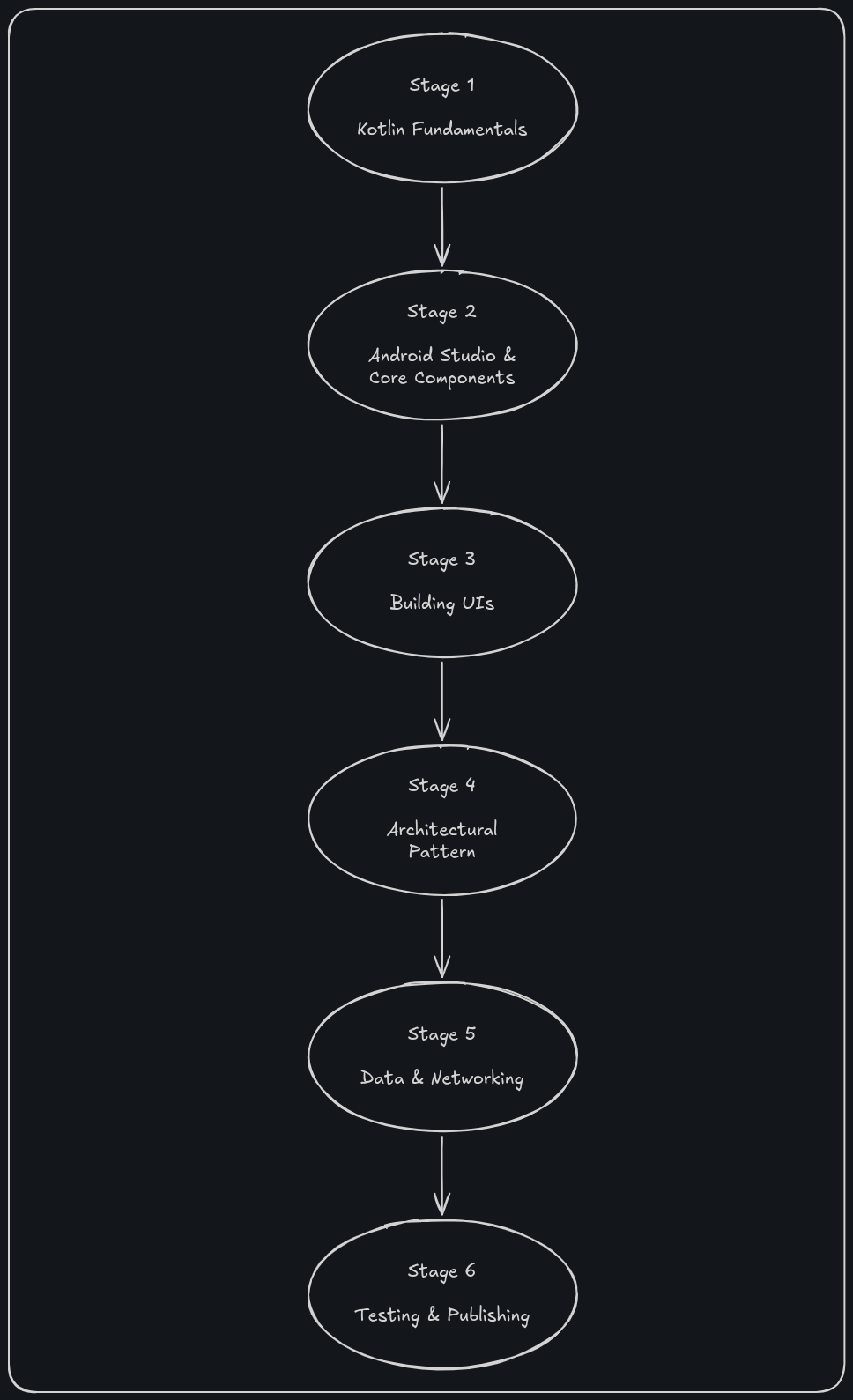
Stage 1 - Kotlin Fundamentals (4-6 weeks)
Variables, data types, control flow, functions, classes, null safety, and Kotlin’s specific features - data classes, extension functions, and sealed classes. Build small command-line programs first - a unit converter, a simple to-do list in the terminal - before opening Android Studio’s interface tools at all.
You’re ready to move on when: you can write and reason about Kotlin code involving null safety and classes without constantly checking documentation.
Stage 2 - Android Studio & Core Components (4-6 weeks)
Get comfortable with Android Studio itself - the project structure, Gradle, and the debugger. Then the core building blocks every Android app is made of: Activities, Fragments, Intents, and the Activity lifecycle (onCreate, onStart, onResume, onPause, onStop, onDestroy). Understanding lifecycle events properly is non-negotiable - it’s where a huge share of beginner bugs come from.
You’re ready to move on when: you can explain what happens to an Activity’s state through each lifecycle event, and build a simple multi-screen app using Intents to navigate between them.
Stage 3 - Building UIs: XML and Jetpack Compose (8-10 weeks)
Both, with real weight given to each, as discussed above. Start with XML layouts and the View system - understanding findViewById, view binding, and basic layout containers (LinearLayout, ConstraintLayout). Then move into Jetpack Compose - composables, state (remember, mutableStateOf), and how Compose’s declarative model differs fundamentally from the imperative View system you just learned.
You’re ready to move on when: you can build the same simple screen in both XML and Compose, and explain concretely why the two approaches produce different code for the same result.
Stage 4 - Architecture: MVVM (4-6 weeks)
MVVM (Model-View-ViewModel) is the dominant architecture pattern in professional Android development. Learn ViewModel and LiveData or StateFlow for managing UI state that survives configuration changes (like a screen rotation) without losing data - a problem beginners run into constantly before they understand why MVVM exists.
You’re ready to move on when: you can explain why an app is structured the way it is, not just reproduce the pattern from memory.
Stage 5 - Data & Networking (6-8 weeks)
Room for local databases, Retrofit for talking to REST APIs, and Kotlin Coroutines and Flow for handling asynchronous work - network calls, database queries - without blocking the UI thread. Almost every real app needs all three. If you want the back-end side of this conversation explained properly, the back-end development post on this blog covers it in full.
You’re ready to move on when: you can build an app that fetches data from a real API, stores it locally with Room, and displays it - handling loading and error states properly.
Stage 6 - Testing & Publishing (3-4 weeks)
Basic unit testing with JUnit, UI testing with Espresso, and the actual Play Store submission process - app signing, the Play Console, content ratings, and the review process. Get comfortable with Google Play’s data safety form and current content policies before you’re anywhere near ready to submit, not after a rejection.
You’re ready to move on when: you’ve published something - even something small - to the Play Store (or at minimum, a closed testing track), and can talk through the whole pipeline from code to a stranger’s phone.
Building Your Portfolio
Android hiring, like most of software development, is portfolio-driven. What you can show and explain matters more than what you can claim.
- GitHub - a well-documented profile with real, working projects. Commit history that shows consistent progress over time is a genuine signal.
- A published Play Store app - even something small and simple. Google Play Console has a one-time $25 registration fee - a meaningfully lower barrier than Apple’s $99/year for a developer account, and one more small, honest reason Android is a slightly gentler place to start publishing real work.
- Open-source contributions - fixing a typo in a library’s documentation, reporting a reproducible bug, or eventually contributing code to a project you actually use, are all genuine, verifiable signals of engagement with the ecosystem.
Certifications
Here’s the honest version: Google’s own Associate Android Developer certification - the closest thing Android ever had to an official credential - has been retired, and Google’s certification page confirms it’s no longer accepting new registrations. There is currently no actively-maintained, official Google certification path for Android development.
Unlike cybersecurity, where certifications like Security+ or OSCP carry real weight, Android hiring doesn’t have an equivalent certification culture at all. A published app and a solid GitHub profile do more for you in an interview than any credential would - which is exactly why the portfolio section above comes before this one, not after.
Common Mistakes
A lot of pre-2020 content still ranks well in search results and teaches patterns Google has since moved away from. Cross-check anything you learn against Android's current official documentation before building habits around it.
It works fine for a five-screen tutorial app and becomes unmanageable the moment a real app grows past that - and, like MVVM elsewhere in this roadmap, interviewers assume you already know why this pattern exists.
Given the real-device section above, this is the mistake that turns into a surprise the moment your app meets a mid-range phone with less RAM than your development machine, or a battery and permissions quirk the emulator never simulated.
Google's data safety form and content policies have gotten stricter, and a rejected submission over a policy you didn't read costs real time. Read the guidelines before you're anywhere near ready to submit.
The Associate Android Developer program is retired. Time spent hunting for an official Android credential is better spent shipping something real.
Frequently Asked Questions
Not to start. Kotlin is the correct first language for anyone entering Android development today. That said, a meaningful amount of legacy production code - especially at larger or older companies - still runs on Java, and some job postings mention it as a plus. Learn to read it later if a specific role calls for it, rather than as part of your initial learning path.
This post's roadmap teaches XML first, for the same reason UIKit is taught before SwiftUI on the iOS side of this blog - XML exposes what's actually happening underneath in a way Compose abstracts away. Once you understand both, Compose becomes where most of your daily work happens, with XML fundamentals as a foundation you can still read when you meet it in production code.
"Harder" depends what you're comparing. Android's fragmentation - device diversity, OS version spread, manufacturer skins - is a real, structural challenge iOS mostly avoids by controlling a small, tightly managed set of devices. iOS's trade-off runs the other way: a hard Mac requirement and a stricter, single review process. Neither is objectively harder - they're different trade-offs, covered in more depth in the iOS post on this blog.
Yes, entirely. Android Studio runs natively on Windows, Linux, and macOS, with no platform requirement at all - one of the more genuinely beginner-friendly aspects of getting started here compared to iOS.
Following this roadmap with consistent effort, most people reach a junior, job-ready standard in 9 to 15 months - covering Kotlin fundamentals, both XML and Compose, and at least one properly shipped app. As with iOS, genuine architecture understanding is what most interviews actually test for, not just syntax familiarity.
No - it's been retired, and Google is no longer accepting new registrations for it. There's no current, actively-maintained official certification worth prioritising in Android development. Time is better spent building and shipping a real app.
Where to Go From Here
You’ve got the full picture: what Android development actually involves, the honest Kotlin-vs-Java and Compose-vs-XML realities, why fragmentation cuts both ways, what Gemini in Android Studio actually does for you, salaries and demand, and a complete roadmap from Kotlin fundamentals through publishing your first app.
If cross-platform development - Flutter, React Native - is calling instead, or you want to see the other side of the fragmentation trade-off, the Cross-Platform and iOS posts cover that.
For questions, portfolio feedback, or to argue about Compose vs XML - the community links are in the footer.