How to Become a Windows Developer in 2026
If you’ve read the Desktop App Developer post and the quiz pointed you here - or you already knew Windows was your lane before you got anywhere near a quiz - this is the full, deep breakdown. Everything shared across desktop platforms was already covered there. This post is entirely about what’s specific to building for Windows.
One thing worth clearing up before anything else: This post is about native Windows development - C#, .NET, and Microsoft’s own UI frameworks. If what you actually had in mind is one codebase that runs on Windows, macOS, and Linux using web technologies like Electron or Tauri, that’s cross-platform desktop development, and it gets its own dedicated post on this blog. And if you’re thinking of .NET MAUI - it’s a cross-platform .NET framework that happens to draw its Windows UI with WinUI 3 underneath. Worth knowing the name; it’s a different path from the one below.
Let’s get right into it.
What Is Windows Development?
Here’s the picture to hold on to: A Windows app is a guest in a building Microsoft owns. The building provides the rooms - windows, file access, notifications, printing, the taskbar - through a huge set of APIs. Your framework is how you furnish the room you’ve been given, and the way you ship your app is how you get the keys.
Every piece of that picture has a name:
C# is the language - a modern, statically typed, object-oriented language - that is the default choice for Windows apps in 2026. If you’ve followed this blog’s back-end roadmap and learnt Java, you’re closer to C# than you think. More to come on that in the FAQ section.
.NET is the runtime and class library your C# code runs on. Modern .NET (the one that began with .NET Core and is now simply called .NET) is cross-platform, open-source, and where all current development happens.
XAML is the markup language you describe your user interface in. WinUI 3 and WPF both use it, which is one of the biggest reasons learning one makes the other so much easier.
WinUI 3, WPF, and WinForms are the three UI frameworks you’ll actually meet. This is the part of Windows development that confuses newcomers the most, so most of the next section is spent on it.
Visual Studio is Microsoft’s official IDE and the home of almost all Windows development - the place your code, your designer tooling, your debugger, and your packaging come together.
The Microsoft Store is one way to distribute a Windows app, but unlike a phone’s app store it is very much not the only way. Windows has always allowed you to hand someone an installer and let them run it. That freedom is a huge part of why Windows software is so varied - and why packaging gets its own section later in this post.
Why Windows Matters in 2026
Here are the numbers, not the vibes: Windows holds roughly 70% of the worldwide desktop operating system market in StatCounter’s 2026 data, down only modestly from where it sat a decade ago. If someone is sitting at a desk in an office, a bank branch, a hospital, a factory, or a government building, the odds are strongly in favour of a Windows machine in front of them.
That reach is exactly why Windows development is enterprise-shaped.
The software that runs on all those machines is rarely glamorous: inventory systems, point-of-sale tools, internal dashboards, accounting front-ends, hardware-control software, and line-of-business apps that a single company depends on every day. Nobody tweets about it, and it keeps the lights on.
A short enterprise reality check: A meaningful share of Windows development work is maintaining and extending existing apps, not starting from a blank page. Think of it like renovating an old building versus designing a new one - you need to understand how the old structure was built before you can safely knock a wall out. We don’t have a hard statistic to put on this, and the share will differ between employers, so treat it as a widely reported pattern rather than a number. But it’s a big part of why this post gives WPF real coverage rather than treating it as legacy trivia: your first Windows job may well be built on it.
The honest cost: Windows development is Windows-only. Your app won’t run on a phone, and it won’t run on a Mac or a Linux machine without a rewrite or a cross-platform approach. And Microsoft has shipped several UI frameworks across three decades, so the landscape carries history that Android or iOS development simply doesn’t.
The verdict: Windows development is a strong, stable, well-compensated path in 2026 - particularly if you want to work on business software rather than consumer apps. It rewards patience and a willingness to read old code. If you’re after the broadest consumer reach, mobile will serve you better; if you want to build the tools that organisations quietly rely on, this is the place.
WinUI 3, WPF, and WinForms: The Honest Breakdown
Three frameworks, three different eras, and all three still matter. Here’s how Microsoft’s own current guidance frames it: WinUI 3 is the recommended native UI framework for new Windows apps, while WPF is recommended for teams with an existing WPF investment or when a XAML designer is required. WPF and WinForms, in Microsoft’s words, are fully supported on modern .NET and continue to receive feature updates. Nobody is being forced off anything.
WinUI 3
WinUI 3 is Microsoft’s modern UI framework - Fluent Design, rounded corners, the look of current Windows 11 apps. It ships as part of the Windows App SDK, which is decoupled from the operating system itself, meaning Microsoft can ship new features to it without waiting for a new version of Windows.
Why it leads this post: It’s where Microsoft is putting its energy, it’s what its new tooling and templates target, and it’s the framework you’d choose for a brand-new Windows-only app that needs a modern UI.
The honest trade-offs: It requires modern .NET (it can’t target the older .NET Framework), its ecosystem of third-party controls and tutorials is younger than WPF’s, and - at the time of writing - Microsoft’s own comparison table lists the Visual Studio XAML designer as not yet available for WinUI 3. You work with live tooling instead: Hot Reload, the Live Visual Tree, and the Live Property Explorer.
WPF
WPF (Windows Presentation Foundation) arrived in 2006 and has been the workhorse of serious Windows desktop software ever since. It’s XAML-based, powerful, deeply customisable, and has by far the largest pile of existing production code, third-party control libraries, and Stack Overflow answers of the three.
This is not a legacy footnote.
Microsoft’s own guidance says an existing WPF app should generally stay WPF and modernise - upgrade to modern .NET, then add Windows App SDK features like notifications - rather than be rewritten. WPF also still has the mature Visual Studio XAML designer that WinUI 3 doesn’t. And in terms of what employers actually run, WPF is arguably at least as common as WinUI 3 in enterprise-leaning job postings, which is what you’d expect from a framework with nearly two decades of head start. Again, a pattern rather than a statistic - but a pattern worth planning around.
The honest trade-off: WPF’s look is older by default, and it doesn’t get the newest Windows 11 visual features without extra work.
WinForms
WinForms is the oldest of the three, dating back to 2002. You build the UI by dragging controls onto a canvas in a visual designer and writing event handlers behind them. It’s simple, fast to get something working, and still used for small internal tools and long-lived business apps.
It also still receives updates on modern .NET, so it isn’t going anywhere. But it’s the least flexible of the three for modern, responsive interfaces, and it doesn’t use XAML at all. You should know it exists and be able to read it - it’s not where this roadmap spends your time.
A Word on UWP
You’ll also see references to UWP (the Universal Windows Platform) in older tutorials and documentation. It remains supported with bug and security fixes, but Microsoft’s guidance for existing UWP apps is to migrate to the Windows App SDK and WinUI 3, since most new features ship there. Treat UWP as something you’ll recognise and understand, not something you’ll start with - and treat tutorials built around it with some caution, for reasons covered in the Common Mistakes section below.
The Verdict
Learn WinUI 3 first, then WPF as a second dialect. XAML is the shared language; WinUI 3 and WPF are two regional accents of it - the way British and American English share grammar but disagree on spelling and a few idioms. Once you’ve learnt XAML, data binding, and MVVM in WinUI 3, picking up WPF is mostly a matter of learning where the spelling differs, and you’ll come out of it employable on both new projects and the older codebases that still pay a lot of salaries. WinForms is worth an afternoon of familiarity, not a roadmap stage.
Which One Should You Learn?
The tree below is the short version of everything above, shaped as a few questions. Follow the branch that matches your situation, and click a leaf to jump to the matching section.
-
Building something new, or joining an existing app?
- Existing app Learn whatever it's built on - usually WPF or WinForms
- New app: does it need to run on Mac or Linux too?
Click any leaf to jump to that section - or, for the cross-platform branch, to the guide that's coming next.
Windows Versions & Targeting
Before you write any line of code, you need to know and understand which versions of Windows your app has to run on. Think of it as choosing the lowest floor your lift will serve: set it too high and some of your users can’t get in; set it too low and you can’t use the newer amenities on the upper floors.
The Windows 10 Reality
Plenty of developers assume everyone has moved to Windows 11. They haven’t, and the timeline here has had a plot twist worth knowing:
- Windows 10 reached its official end of support on 14 October 2025.
- Microsoft then offered consumers a free Extended Security Updates (ESU) bridge, originally set to end in October 2026. On 25 June 2026 it quietly extended that bridge to 12 October 2027 for enrolled personal devices.
- Businesses are on a separate, paid ESU programme that can run for up to three years, into October 2028.
- On the usage side, StatCounter’s June 2026 figures (as reported by trackers of that data) put Windows 11 at roughly 70% of desktop Windows machines worldwide and Windows 10 at roughly 28%. That’s a fast shift - but note that StatCounter measures web traffic, not installed machines, and the split varies a lot by country and by employer. For your own target market, check StatCounter’s regional view rather than leaning on the global number.
What this means for you: Corporate fleets move slowly, and a company’s internal app often has to run on whatever its IT department has deployed. Treat Windows 10 as a real target through at least 2027, not a rounding error.
How Targeting Actually Works
WinUI 3 apps are built on the Windows App SDK, which Microsoft’s documentation lists as requiring Windows 10, version 1809 (build 17763) or later. In practice that means one WinUI 3 app can reach both Windows 10 AND Windows 11 - the decoupling from the OS that was mentioned earlier is what makes it possible. Check the release notes of the specific Windows App SDK version you pick, since minimums can change between releases.
In your project file, two properties carry the idea. The first says which Windows SDK you’re building against; the second is the floor - the oldest Windows version you promise to support:
<PropertyGroup>
  <TargetFramework>net10.0-windows10.0.19041.0</TargetFramework>
  <TargetPlatformMinVersion>10.0.17763.0</TargetPlatformMinVersion>
</PropertyGroup>
Your project template will generate values like these for you - the point is understanding what they mean when you need to change them.
The Practical Rules
-
Check the minimum OS version in the API documentation before using a Windows feature: Some newer Windows features only exist on Windows 11, and calling them on Windows 10 fails at runtime, not at build time.
-
Test on both: A Windows 10 virtual machine costs you nothing but a bit of disk space, and it will catch things your Windows 11 machine never will.
-
Test different screen scaling and resolutions: Windows machines range from small laptops at 125% scaling to large monitors, and layouts that look perfect on yours can clip on someone else’s.
-
Know your .NET version: .NET 10 is the current long-term support release, supported through November 2028. .NET 8 and .NET 9 both reach end of support on 10 November 2026, and .NET 11 is expected around the same month. New projects should start on .NET 10; you’ll still meet older versions - and the even older .NET Framework 4.8, which only receives security fixes - in production code you inherit.
Building Your First Screen
Enough theory - let’s build the same simple screen two different ways, so the difference between WinUI 3 and WPF is something you feel, not just read about.
By the end of this section you’ll have a small profile card - a name, a bio, and a button that toggles the bio’s visibility - in both frameworks. If you’ve read the front-end post or the Android post, you’ll recognise the exact same card; same result, completely different toolkit.
Setup: install Visual Studio (the free Community edition is fine) with the .NET desktop development workload for WPF, and the Windows application development workload for WinUI 3. Name both projects ProfileCard so the namespaces in the code below match. For WPF you can also create the project from a terminal with dotnet new wpf -n ProfileCard; for WinUI 3, use Visual Studio’s WinUI 3 blank app template (its exact name varies slightly between Visual Studio versions).
The WinUI 3 Way
MainWindow.xaml:
<Window
    x:Class="ProfileCard.MainWindow"
    xmlns="http://schemas.microsoft.com/winfx/2006/xaml/presentation"
    xmlns:x="http://schemas.microsoft.com/winfx/2006/xaml"
    Title="Profile Card">

    <StackPanel
        HorizontalAlignment="Center"
        VerticalAlignment="Center"
        Padding="24"
        Spacing="8">

        <TextBlock
            Text="John Doe"
            FontSize="24"
            FontWeight="Bold"
            HorizontalAlignment="Center" />

        <TextBlock
            x:Name="BioText"
            Text="Aspiring Windows developer, learning C# one line at a time."
            TextWrapping="Wrap"
            MaxWidth="300"
            TextAlignment="Center" />

        <Button
            x:Name="BioButton"
            Content="Hide Bio"
            HorizontalAlignment="Center"
            Click="BioButton_Click" />
    </StackPanel>
</Window>
MainWindow.xaml.cs:
using Microsoft.UI.Xaml;

namespace ProfileCard;

public sealed partial class MainWindow : Window
{
    public MainWindow()
    {
        InitializeComponent();
    }

    private void BioButton_Click(object sender, RoutedEventArgs e)
    {
        if (BioText.Visibility == Visibility.Visible)
        {
            BioText.Visibility = Visibility.Collapsed;
            BioButton.Content = "Show Bio";
        }
        else
        {
            BioText.Visibility = Visibility.Visible;
            BioButton.Content = "Hide Bio";
        }
    }
}
Output
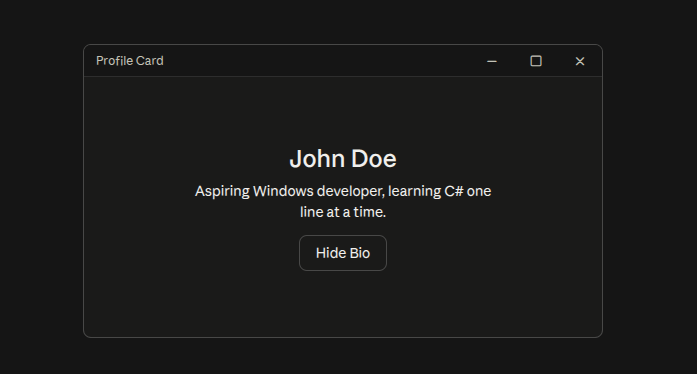
Notice the pattern: The layout lives in XAML, the behaviour lives in a C# file beside it, and the two are joined by the
x:Nameof each control and theClickhandler you named. Keeping them in sync is on you - the same shape as Android’s XML approach.
The WPF Way
MainWindow.xaml:
<Window x:Class="ProfileCard.MainWindow"
        xmlns="http://schemas.microsoft.com/winfx/2006/xaml/presentation"
        xmlns:x="http://schemas.microsoft.com/winfx/2006/xaml"
        Title="Profile Card" Height="300" Width="400">

    <StackPanel HorizontalAlignment="Center"
                VerticalAlignment="Center"
                Margin="24">

        <TextBlock Text="John Doe"
                   FontSize="24"
                   FontWeight="Bold"
                   HorizontalAlignment="Center" />

        <TextBlock x:Name="BioText"
                   Text="Aspiring Windows developer, learning C# one line at a time."
                   TextWrapping="Wrap"
                   MaxWidth="300"
                   TextAlignment="Center"
                   Margin="0,8,0,0" />

        <Button x:Name="BioButton"
                Content="Hide Bio"
                HorizontalAlignment="Center"
                Padding="16,6"
                Margin="0,16,0,0"
                Click="BioButton_Click" />
    </StackPanel>
</Window>
MainWindow.xaml.cs:
using System.Windows;

namespace ProfileCard;

public partial class MainWindow : Window
{
    public MainWindow()
    {
        InitializeComponent();
    }

    private void BioButton_Click(object sender, RoutedEventArgs e)
    {
        if (BioText.Visibility == Visibility.Visible)
        {
            BioText.Visibility = Visibility.Collapsed;
            BioButton.Content = "Show Bio";
        }
        else
        {
            BioText.Visibility = Visibility.Visible;
            BioButton.Content = "Hide Bio";
        }
    }
}
Output
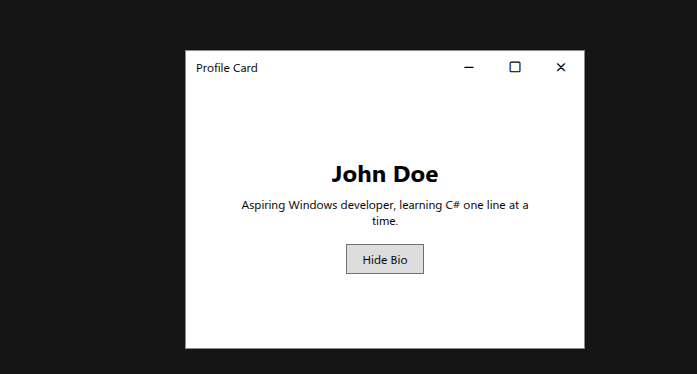
Essentially the same result. Now look at what actually changed, because those differences are the whole “dialect” idea in miniature:
| What | WinUI 3 | WPF |
|---|---|---|
| Core namespace | Microsoft.UI.Xaml |
System.Windows |
| Spacing between children | Spacing and Padding on StackPanel |
No such properties - you put Margin on each child |
| Window size | Set in code, or left to defaults | Height and Width right in the XAML |
| Class keyword | sealed partial class |
partial class |
| Visual designer | Live tooling (Hot Reload, Live Visual Tree) | Full XAML designer in Visual Studio |
The logic inside the click handler is character-for-character identical. That’s the point: the skills transfer, and only the spelling moves.
If you’ve worked through the Compose half of the Android post or React on the front-end, you may be wondering where the “UI as a function of state” idea went. In the XAML world that idea shows up as data binding and the MVVM pattern - you bind controls to properties on a view-model instead of poking at them by name, and the UI updates itself when the data changes. It’s the same underlying shift, and it’s Stage 4 of the roadmap below.
Which one should you actually build with first?
Per the verdict above: WinUI 3. Then rebuild this exact card in WPF, and notice how little of your understanding you have to replace.
Windows-Specific Platform Features
A website can’t do most of what’s in this section. These are the reasons a native Windows app exists at all - the amenities that come with the building. Keep the “guest in a building Microsoft owns” picture from earlier in mind, because every item below is a feature of the building that your app gets to use.
Notifications are the doorbell: Your app can alert the user with a toast notification even when it isn’t the window in front of them. The Windows App SDK has its own app notifications API for this (look for Microsoft.Windows.AppNotifications), and it’s one of the most common reasons developers add Windows App SDK features to an existing WPF or WinForms app.
The system tray is the quiet security guard at the desk: Plenty of utilities live as a tiny icon in the corner of the taskbar and only appear when needed. Here’s a genuine first-week stumbling block: neither WinUI 3 nor WPF gives you a polished, ready-made tray icon control out of the box (WinForms has had a NotifyIcon for years). The common route is a community library such as H.NotifyIcon, which supports both WPF and WinUI. Knowing that in advance saves an afternoon of searching for a control that isn’t there.
File associations and protocol activation are the mail slot: Double-click a .xyz file, or click a myapp:// link, and Windows opens your app and hands it the contents. For packaged apps you declare these in the app’s manifest; for unpackaged apps, the traditional route is an installer that writes the right registry entries. It’s how apps like editors and media players feel “built in” to the system.
Startup and background behaviour is the staff-only back room: Some apps need to launch when the user signs in. Others - Windows Services - run in the background with no window at all, often before anyone has even logged on. Services are a staple of enterprise software, and “build me something that quietly runs all day and talks to the database” is a very ordinary Windows developer request.
Win32 interop is the back door: Sooner or later you’ll hit something the modern APIs don’t cover. Windows lets you drop down to the original, lower-level Windows APIs (the “Win32” layer) from C# through a mechanism called P/Invoke. Microsoft’s CsWin32 library can generate the declarations for you, so you don’t have to write them by hand. This is an advanced skill, but knowing the back door exists - and what it’s called - is what makes you the person on the team who can say “yes, we can do that.”
Two more are worth a one-line mention so the names don’t surprise you: Windows Hello (using the system’s fingerprint or face sign-in for your own app’s authentication) and the registry (Windows’ old-style configuration database, which you’ll mostly meet when reading older code or writing installers).
Packaging and Distribution: MSIX vs Classic Installers
Writing the app is half the job. Getting it onto someone else’s machine - cleanly, safely, and in a way their IT department will tolerate - is the other half, and Windows gives you more than one way to do it.
Think of it this way: a classic installer (an .exe or .msi file) is like hiring a contractor and handing them your keys. They can rearrange anything in the house, which makes them extremely flexible - and also means the uninstall isn’t always as clean as the install was. MSIX is more like a sealed, labelled meal kit: it installs and uninstalls predictably, the rules are strict, and what’s inside can’t wander off and rearrange the kitchen.
MSIX: What You Get
- Clean installs and uninstalls: The package is containerised, so removing the app removes what it installed.
- Built-in update support, plus package identity - which unlocks some Windows features that unpackaged apps can’t use as easily.
- Microsoft Store eligibility.
- Mandatory digital signing: Every MSIX package must be signed with a code-signing certificate the device trusts, or installation fails. That’s a security strength and a practical hurdle.
- Microsoft’s own tooling points you here by default for WinUI 3 apps.
MSIX: What It Costs You
- It doesn’t allow the traditional installer “custom actions” that older MSI packages relied on, so anything unusual - registering services, installing drivers, doing special things to the registry - may need rethinking or may not fit.
- Enterprise IT teams that already have established MSI or EXE deployment pipelines may not want to change them. That’s not a technical limitation of MSIX so much as a reality of how large organisations work.
- The signing requirement means certificates become part of your workflow from day one.
Classic Installers (Unpackaged): What You Get and What You Carry
Microsoft’s own documentation is clear that you can ship a WinUI 3 app without MSIX - useful for enterprise scenarios where MSIX deployment isn’t available, or if you prefer a traditional folder-based install. You wrap the output in an installer built with a tool like WiX or Inno Setup, and all the familiar Windows mechanisms (registry entries, shortcuts, services) keep working.
The catch for WinUI 3 specifically: An unpackaged app has to deal with the Windows App SDK runtime itself. You either bundle the runtime installer so it’s set up once on the user’s machine, or you publish self-contained, which includes the runtime but makes the output considerably larger and carries that weight on every update. WPF and WinForms apps don’t have this extra step, which is part of why they stay popular for internal tools.
The Verdict
Learn MSIX first for your own projects, and know classic installers exist because your future employer might insist on them.
MSIX is the cleaner path for a portfolio app, the Store, and anything where you control distribution. But there’s a large amount of real-world Windows software shipped as .exe and .msi installers, especially inside organisations, and a Windows developer who has never built one is missing a skill the job market regularly asks for. (And if you already have a traditional installer, you can still submit it to the Store through a separate path - it isn’t an either/or forever.)
Tools You’ll Work With
- Visual Studio - Microsoft’s IDE and the centre of Windows development. The Community edition is free, and it’s where your code, designer tooling, debugger, and packaging come together.
- The .NET SDK - The compiler, runtime, and command-line tooling (
dotnet new,dotnet build,dotnet run). - NuGet - .NET’s package manager, for pulling in libraries like CommunityToolkit.Mvvm or Entity Framework Core.
- The Windows App SDK - The modern API layer behind WinUI 3, notifications, and more, and the thing you can also bolt onto older WPF and WinForms apps.
- WinApp CLI - Microsoft’s command-line tool for creating, building, packaging, and publishing Windows apps (more on this below).
- Windows Terminal and PowerShell - Your command-line home on Windows.
- Git & GitHub - Version control, non-negotiable, same as everywhere else on this blog.
- Postman - For testing the APIs your app talks to, independent of the app itself.
AI-Assisted Windows Development
Let’s address this directly: If your instinct is to roll your eyes at yet another AI layer bolted onto your tools, that’s a fair instinct in 2026, and this isn’t going to try to talk you out of it with hype. But Microsoft now documents a dedicated set of AI tooling for Windows development - often grouped under the name Windows Development Skills - and it’s aimed at a very specific, real problem: AI coding assistants are frequently wrong about Windows. They suggest outdated patterns, mix up the older UWP-era namespaces with the modern WinUI 3 ones, and confidently write code that won’t compile. Understanding what the official tooling does is worth ten minutes.
What it actually is:
- WinApp CLI - A free, open-source command-line tool for scaffolding, building, packaging, and publishing Windows apps. It installs with
winget install Microsoft.winappcli --source winget, and it can even submit your app to the Microsoft Store from the command line. - The WinUI agent plugin - A set of eight specialised “skills” plus a dedicated
winui-devagent that walks an AI assistant through the full development loop: set up, scaffold, build, run, test, package, and migrate. It works with the GitHub Copilot CLI and with Claude Code. Microsoft’s documentation states plainly that without a plugin like this, AI agents may suggest outdated patterns for Windows development. - The Microsoft Learn MCP Server - It gives an MCP-compatible AI agent live access to Microsoft’s official documentation, so it’s looking things up rather than guessing from memory. It’s free and needs no sign-in.
- AI-assisted testing and migration - The same documentation covers generating UI tests with Windows UI Automation and getting AI help migrating older WPF or UWP apps toward WinUI 3.
How to actually use it well, rather than let it use you:
- Use it to catch the namespace trap. The classic mistake is
Windows.UI.Xaml(old UWP) versusMicrosoft.UI.Xaml(WinUI 3). If you can’t tell which one a piece of AI-generated code is using, you can’t tell whether it will even compile for your project. - Use the documentation server to verify, not just generate. When an assistant tells you an API exists, have it check the official docs before you build on it.
- Treat migration help as a first draft. Moving a WPF app to WinUI 3 involves control, XAML, and threading differences that need a human who understands both sides.
- Treat generated tests as a starting point. They’ll cover the obvious cases and miss the edge cases that matter to your app.
- If you can’t explain what a piece of AI-suggested code does, don’t merge it. That rule doesn’t change because the suggestion came from a tool Microsoft endorses.
The honest takeaway: This tooling is a genuine productivity gain when it’s used to move faster through things you already understand, and a genuine liability when it’s used to skip understanding them. Learn C#, XAML, and MVVM properly first - then let the tools handle the repetitive parts, not the parts that are teaching you something. One practical note: the WinApp CLI and the Learn MCP Server are free, but the Copilot side needs a GitHub Copilot subscription (a free tier exists), so check what your plan covers before you plan around it.
Jobs, Salaries & Demand in 2026
The Job Market
Windows development stays consistently in demand wherever organisations run on Windows machines - which is most of them. Banks, telecoms, logistics firms, manufacturers, healthcare providers, and government bodies all depend on desktop software, and someone has to build and maintain it. As covered earlier, a meaningful share of that work is extending existing WPF and WinForms applications, with new WinUI 3 work growing alongside it. And because C# and .NET are also the backbone of a huge amount of back-end and cloud development, Windows developers tend to find the surrounding skills - APIs, databases, cloud services - are directly transferable to other roles.
Salary Ranges (Approximate, 2026)
| Level | Nigeria (NGN/year) | Global Remote (USD/year) |
|---|---|---|
| Junior | ₦1.8M - ₦4M | $40,000 - $68,000 |
| Mid-level | ₦4M - ₦8.5M | $68,000 - $112,000 |
| Senior | ₦8.5M - ₦19M+ | $112,000 - $185,000+ |
Disclaimer: These are directional figures, in line with the desktop-wide ranges from the Desktop App Developer post - we couldn’t find a reliable, framework-specific salary dataset for Windows development alone, and we’d rather say so than invent false precision. Actual pay varies significantly by employer, industry, and location. Developers who can pair desktop skills with back-end and database skills tend to have more options at every level.
The Full Roadmap
This is the full zero-to-hero roadmap to follow in order to have the skills necessary to land a job or ship your first app. Follow it stage-by-stage and move to the next stage only when you’ve satisfied the criteria to do so.
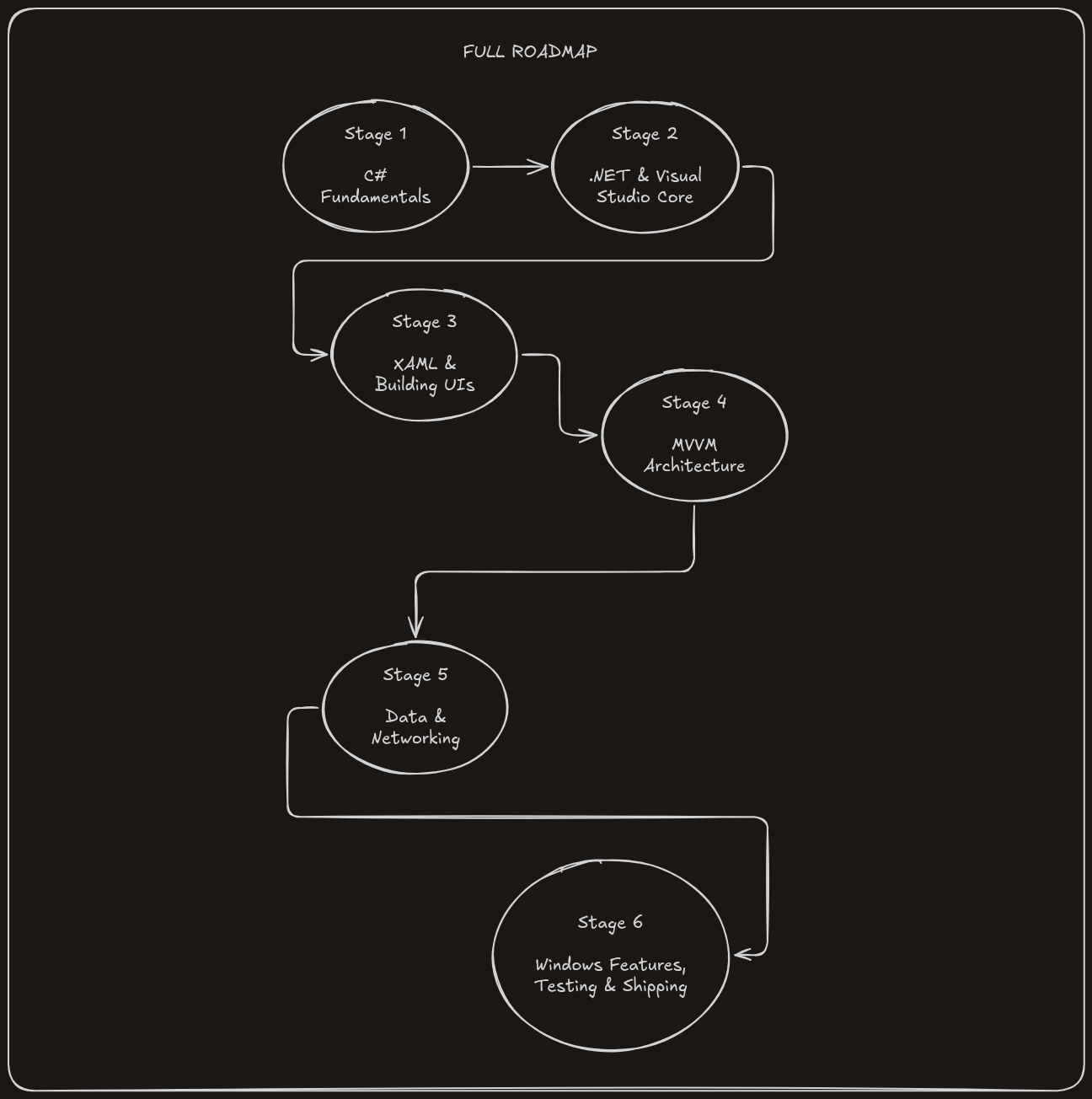
Stage 1 - C# Fundamentals (4-6 weeks)
Variables, data types, control flow, methods, classes and objects, interfaces, collections, and C#’s own features - properties, LINQ, and nullable reference types. Build small console programs first - a unit converter, a simple to-do list in the terminal - before opening a UI designer at all.
You’re ready to move on when: you can write and reason about C# code involving classes, interfaces, and collections without constantly checking documentation.
Stage 2 - .NET & Visual Studio Core (3-4 weeks)
Get comfortable with Visual Studio itself - solutions and projects, the .csproj file, NuGet packages, and the debugger. Then the .NET fundamentals every app is built on: exceptions, async and await, dependency injection basics, and file and JSON handling. Version control with Git belongs here too, if it isn’t already a habit.
You’re ready to move on when: you can set a breakpoint, step through code, add a NuGet package, and explain what async and await are doing for you.
Stage 3 - XAML & Building UIs: WinUI 3, Then WPF (8-10 weeks)
Start with WinUI 3 - XAML syntax, layout panels (Grid, StackPanel), controls, styles and resources, theming, and basic data binding. Then rebuild what you made in WPF and learn where the dialects differ (namespaces, Margin versus Spacing, the designer, and Binding versus x:Bind). Spend an afternoon reading a WinForms project too, so it never looks alien.
You’re ready to move on when: you can build the same screen in both WinUI 3 and WPF, and explain concretely what changed between them and why.
Stage 4 - Architecture: MVVM (4-6 weeks)
MVVM (Model-View-ViewModel) is the dominant architecture pattern across XAML development. Learn INotifyPropertyChanged, commands, and then the CommunityToolkit.Mvvm library that removes most of the boilerplate. Add dependency injection and a simple navigation approach so your app can grow beyond one window.
You’re ready to move on when: you can explain why an app is structured the way it is, not just reproduce the pattern from memory - and you can move logic out of code-behind without breaking anything.
Stage 5 - Data & Networking (6-8 weeks)
SQLite with Entity Framework Core for local data, HttpClient and JSON for talking to REST APIs, and - critically - doing slow work without freezing the window, by keeping long operations off the UI thread. Almost every real app needs all of these. If you want the back-end side of this conversation explained properly, the back-end development post on this blog covers it in full.
You’re ready to move on when: you can build an app that fetches data from a real API, stores it locally, and displays it - handling loading and error states properly without freezing the UI.
Stage 6 - Windows Features, Testing & Shipping (4-6 weeks)
Pick two or three features from the platform features section (notifications and a tray icon are the friendliest starting pair). Learn unit testing with a framework like xUnit, then package your app properly: MSIX with a signing certificate, plus a classic installer built with a tool like WiX or Inno Setup, so you’ve done both. Finish by submitting to the Microsoft Store.
You’re ready to move on when: you’ve shipped something - even something small - that a stranger could install on a Windows machine without your help, and you can talk through the whole pipeline from code to their desktop.
Building Your Portfolio
Windows hiring, like most of software development, is portfolio-driven. What you can show and explain matters more than what you can claim.
- GitHub - A well-documented profile with real, working projects. Commit history that shows consistent progress over time is a genuine signal.
- A published Microsoft Store app - Even something small and simple goes a long way. Microsoft has now removed the registration fee for individual developers (it used to be a $19 one-time charge), and in May 2026 it removed the $99 fee for company accounts too. So both are free to register - which makes the Windows ecosystem one of the cheapest places to put your first published app in front of real users. For comparison, Google Play charges a one-time $25 and Apple charges $99 a year. Non-game apps can also use their own payment system and keep the revenue.
- A small tool for a real person or business - An invoice tracker, a stock list, a booking sheet replacement. It’s the most Windows-shaped portfolio piece there is, and “I built this for a real user and they still use it” is a strong thing to say in an interview.
- Open-source contributions - Fixing documentation, reporting a reproducible bug, or contributing to a .NET or WinUI project you actually use are all verifiable signals of engagement with the ecosystem.
Certifications
Here’s the honest version: There isn’t a Windows or .NET desktop certification to chase. Microsoft retired the MCSA, MCSE, and MCSD certifications in January 2021, and even the later UWP-era “MCSD: App Builder” certification is retired. Microsoft’s current certifications are role-based and cloud-focused - Azure developer and administrator tracks, for instance - and none of them is specific to building Windows desktop apps.
Unlike cybersecurity, where certifications like Security+ or OSCP carry real weight, Windows hiring doesn’t have an equivalent certification culture. A shipped app and a solid GitHub profile do more for you in an interview than any credential would - which is exactly why the portfolio section comes before this one, not after. If a cloud certification appeals to you later because you’re heading toward back-end or cloud work, that’s a separate decision from this roadmap.
Common Mistakes
A lot of older content - and a lot of AI-generated code - still uses the UWP-era Windows.UI.Xaml namespaces, which don't match WinUI 3's Microsoft.UI.Xaml. The code looks right and then refuses to compile, or compiles into something subtly wrong. Check the namespace and the date of whatever you're following before you build habits around it.
Both extremes cost you. Microsoft's own guidance says WPF is fully supported and still receiving updates, and it's what a large share of existing business software runs on. Ignoring it narrows the jobs you can apply for; ignoring WinUI 3 narrows what you can build new. Learn both, in the order this roadmap suggests.
It works for a one-screen tutorial and becomes unmanageable the moment a real app grows. MVVM exists to solve exactly this, and interviewers for XAML roles assume you already know why. Move to a view-model structure as soon as you have more than one screen or any logic worth testing.
A database query or network call run directly in a button handler freezes the whole window until it finishes - the classic "Not Responding" experience. Use async and await for anything that waits, and learn how to get results back onto the UI thread safely. It's one of the most common bugs in real Windows apps.
Real users run different Windows versions, different screen sizes, and different scaling settings. Windows 10 machines are still in active use and the minimum OS version your app supports is a decision you make, not something that happens to you. A virtual machine and a couple of resolutions will catch most surprises.
An unsigned MSIX package won't install at all, and an unsigned installer will usually trigger Windows security warnings that make users hesitate. Certificates, signing, and the way you'll distribute the app are easy to set up early and painful to retrofit. Try a full packaged install on a clean machine well before you think you're ready to ship.
Frequently Asked Questions
WinUI 3 first, for a new learner - it's Microsoft's recommended framework for new Windows apps and the direction of travel. But learn WPF second, not never: XAML, data binding, and MVVM transfer almost completely, so the second framework goes quickly, and WPF is what a large amount of existing business software is built on. If you already know you're joining a team with an existing WPF app, learn WPF first and pick up WinUI 3 afterwards.
Realistically, yes. WinUI 3, WPF, and WinForms apps all run only on Windows, and the tooling is built around it. You can get by with a Windows virtual machine or a cloud-hosted Windows PC from a Mac or Linux machine, but native Windows is far smoother, especially for debugging and testing. The good news is that, unlike Apple's ecosystem, you don't need any particular hardware - an ordinary Windows laptop is enough to start.
A lot. Classes, interfaces, inheritance, generics, collections, exceptions, and the whole object-oriented mindset transfer directly, and the syntax will look very familiar. The new parts to focus on are properties, LINQ (a clean way to query collections), async and await, events and delegates, and XAML itself, which has no real Java equivalent. Expect Stage 1 to move faster than it would for a complete beginner.
Worth being able to read and edit, yes; worth building your roadmap around, no. It's still supported on modern .NET and a lot of long-lived internal tools run on it, so you may well meet it in a job. But it doesn't use XAML, it's the least flexible of the three for modern interfaces, and your time is better spent on WinUI 3 and WPF first. An afternoon of familiarity is plenty.
Following this roadmap with consistent daily practice, most people reach a junior-ready level in roughly 12 to 18 months. The range is wide because pace matters more than total time - two focused hours a day beats a scattered weekend binge. If you already know Java or another object-oriented language, you can reasonably expect to be towards the faster end.
Not to start, and not for most Windows development jobs. C# with .NET covers the large majority of business and desktop application work. C++ and Win32 matter if you want to work on drivers, system utilities, games, or performance-critical software - a genuinely different path that this roadmap doesn't cover. You'll still meet Win32 occasionally through interop, but that's using it, not building on it.
Where to Go From Here
You’ve got the full picture: what Windows development actually involves, the honest WinUI 3, WPF, and WinForms breakdown, the Windows 10 reality you’ll be targeting, the platform features that make a native app worth building, the MSIX versus classic installer trade-off, what Microsoft’s AI tooling really does for you, salaries and demand, and a complete roadmap from C# fundamentals through shipping your first app.
If cross-platform desktop development - Electron, Tauri - is calling instead, or you want to see how the other desktop platforms compare, the Desktop App Developer post is the hub, and the macOS and Linux posts are on the way. And if the shared “UI as a function of state” idea caught your eye, the Android post shows the same shift in a different ecosystem.
For questions, portfolio feedback, or to argue about WinUI 3 vs WPF - the community links are in the footer.